- CNC & laser Cut
- Custom Vector
- Free designs
- Custom Digitizing
- Custom SVG
- CNC & laser Cut
- Custom Vector
- Free designs
- Custom Digitizing
- Custom SVG
- CNC & laser Cut
- Custom Vector
- Free designs
- Custom Digitizing
- Custom SVG

MENU
Case Study•Back to Case Studies
SVG File Imported Incorrectly Into CorelDRAW Causing Black Fill Areas
A client was using a detailed Bryce Canyon vector artwork for laser and engraving work. The artwork looked perfectly fine inside the PDF preview, but after importing it into CorelDRAW, large sections of the design suddenly turned solid black. After testing different file types, the client later found that the SVG version imported correctly and solved the issue.
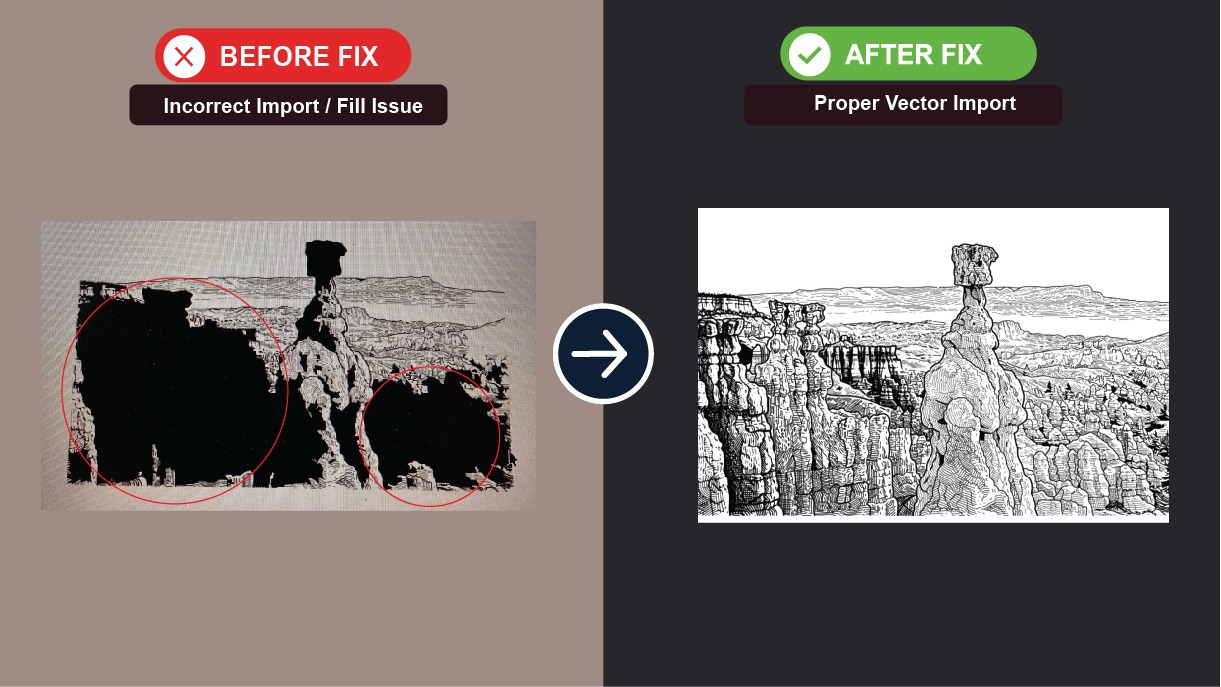
Featured image used as case study image.
The Problem
The client noticed:
the PDF preview looked correct
the artwork became partially black after importing
many fine details disappeared inside CorelDRAW
large shadow areas turned into solid black fills
Because the file preview looked normal, it first seemed like the vector artwork itself might have been damaged or incorrectly created.
the PDF preview looked correct
the artwork became partially black after importing
many fine details disappeared inside CorelDRAW
large shadow areas turned into solid black fills
Because the file preview looked normal, it first seemed like the vector artwork itself might have been damaged or incorrectly created.
What We Found
After reviewing the screenshots and discussing the setup, the artwork itself was not the main issue.
The problem happened during the import process inside CorelDRAW. The detailed linework and shading from the PDF file were being interpreted differently by the software, which caused some areas to convert into solid black shapes.
The SVG version worked correctly because:
SVG files usually preserve vector paths more cleanly
CorelDRAW reads SVG files more reliably for detailed artwork
the line details stayed separated instead of merging into filled black areas
Highly detailed engraving artwork can sometimes behave differently depending on:
the software being used
import settings
file format compatibility
how shading and overlapping paths are interpreted
The problem happened during the import process inside CorelDRAW. The detailed linework and shading from the PDF file were being interpreted differently by the software, which caused some areas to convert into solid black shapes.
The SVG version worked correctly because:
SVG files usually preserve vector paths more cleanly
CorelDRAW reads SVG files more reliably for detailed artwork
the line details stayed separated instead of merging into filled black areas
Highly detailed engraving artwork can sometimes behave differently depending on:
the software being used
import settings
file format compatibility
how shading and overlapping paths are interpreted
What We Did
• Reviewed the screenshots shared by the client
• Compared how the artwork looked before and after importing
• Confirmed the issue appeared inside CorelDRAW during import
• Suggested testing the SVG version instead of the PDF
• Discussed how detailed linework can import differently between formats
• Helped identify which file type worked best for the client’s workflow
• Compared how the artwork looked before and after importing
• Confirmed the issue appeared inside CorelDRAW during import
• Suggested testing the SVG version instead of the PDF
• Discussed how detailed linework can import differently between formats
• Helped identify which file type worked best for the client’s workflow
Why It Worked
Once the client used the SVG version instead of importing the PDF, the artwork transferred correctly without the unwanted black fill areas.
This showed the problem was mainly caused by:
file import interpretation inside CorelDRAW
PDF handling differences
software reading overlapping vector details incorrectly
The vector artwork itself was already correct because:
the PDF preview displayed properly
the SVG version imported successfully
the original details were still present in the file
Different programs can sometimes read complex vector shading differently, especially with detailed engraving artwork and tightly packed linework.
This showed the problem was mainly caused by:
file import interpretation inside CorelDRAW
PDF handling differences
software reading overlapping vector details incorrectly
The vector artwork itself was already correct because:
the PDF preview displayed properly
the SVG version imported successfully
the original details were still present in the file
Different programs can sometimes read complex vector shading differently, especially with detailed engraving artwork and tightly packed linework.
Final Results
- Artwork imported correctly using SVG
- Black fill issue resolved
- Fine engraving details preserved
- No artwork redesign required
- Successful transfer into CorelDRAW completed
Client Feedback
"“It’s all good now I can use the SVG thanks again.”
"
"
— Krissy
Project Gallery
0 imagesNo gallery images.
Copyright © 2026 Las Vegas Designs USA. All rights reserved.